Two widgets
- Punch widget — clock in and out from a Home Screen button.
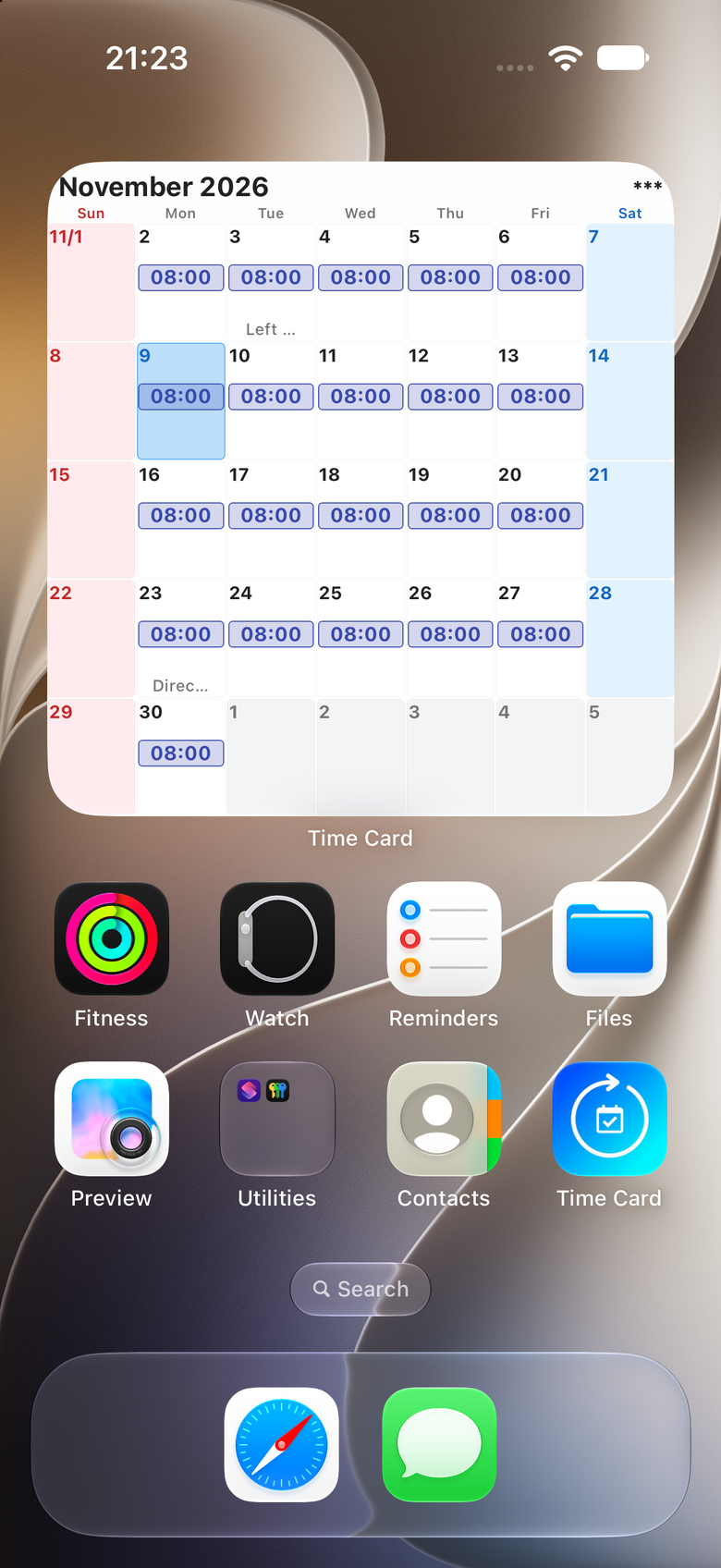
- Shift calendar — shows this month’s shifts. Tap a day to open it.
Add the shift calendar
- Long-press the Home Screen.
- Choose Shift calendar from the widget gallery and place it.
- Tap a day to open that day for editing.
iPhone and Android
- On iPhone, medium shows this week, including how many days you worked and the total hours.
- On iPhone, large shows this month. Only medium and large are available; free vertical resizing is not supported.
- On Android, the widget shows this month (default about 4×4) with larger type. Resizing shorter hides aux hours first; holiday names and memos stay visible.
The grid is the calendar month. Each day shows a start-to-end time range, and hours worked when the cell has room. Day cells keep holiday and memo slots aligned like the in-app calendar. Memos support line breaks (up to 3 lines with one shift, 1 line with two or more). App calendar time display (range / hours) is reflected on the widget. Japanese public holiday names appear only when the app language is Japanese.
Planned-only days stay dashed. Estimated pay in the corner uses the same show/hide setting as the punch widget. Hidden pay appears as ***. Pay counts actual times only.
Add the punch widget
- Long-press the Home Screen and add the Time Card punch widget. The steps differ on iPhone and Android.
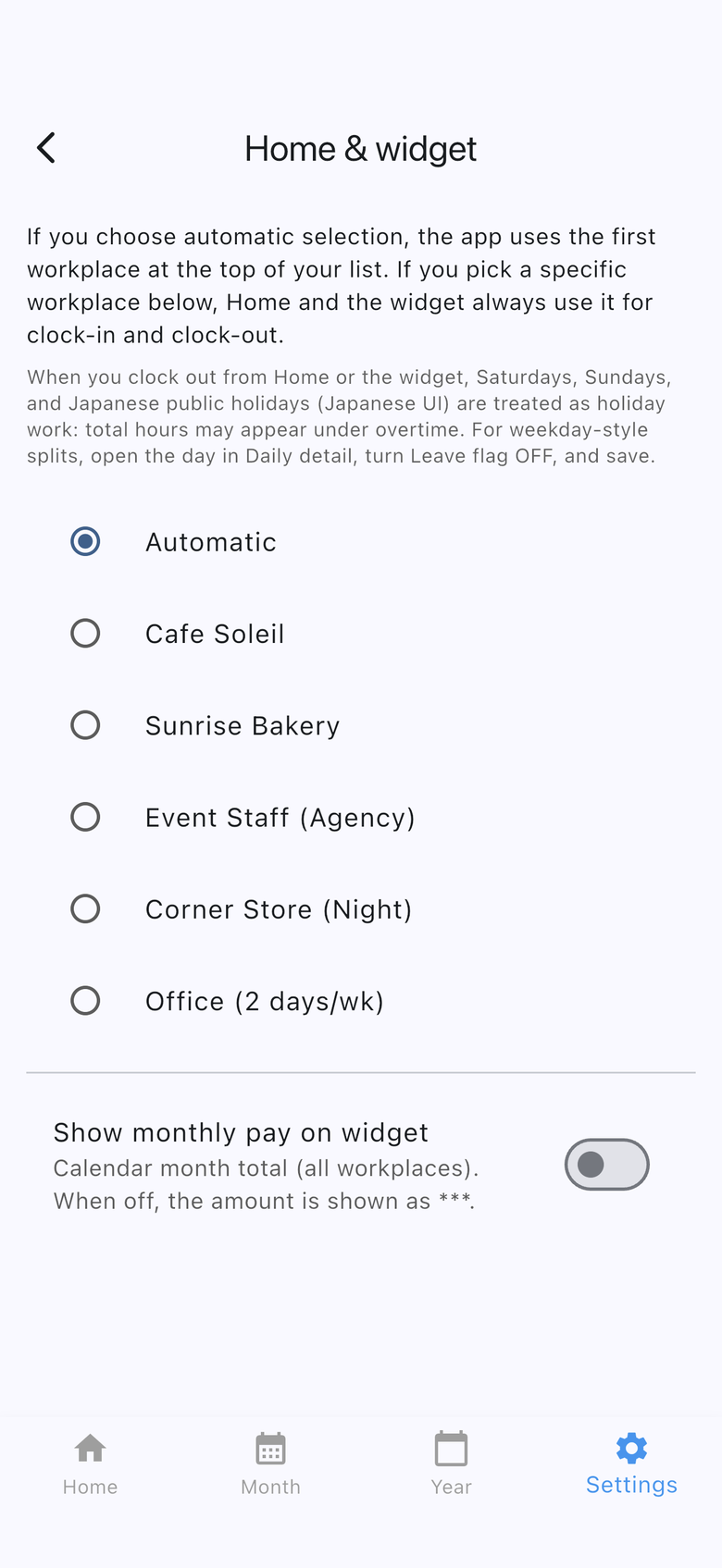
- In the app, open Settings → Home & widget. Choose an automatic or fixed workplace, and whether estimated monthly pay is shown.
- On Android, set widget background opacity on the same screen (10%–100%; applies to the frame and shift calendar cell fills). This option is not shown on iPhone because of WidgetKit limits.
- Use the widget buttons to clock in or out. On Android, 1×1 and 2×1 layouts are tuned so times are less likely to clip.
Size and layout follow the operating system. If the widget does not respond, clock in from the Home tab in the app.