Getting started
Time Card records when you work on your device and shows estimated pay based on hourly settings. It is meant for personal use, not as a replacement for a company-wide attendance system.
- Install the app from the App Store or Google Play.
- Open the Settings tab → Workplaces and register a workplace name, hourly wage, and other options (a setup dialog may appear on first launch).
- On the Home tab, tap Clock in / Clock out to record your work.
- On the Monthly tab, review hours and estimated pay for the month.
Data is stored on your device by default. Before changing phones, use Backup & restore (described below).
Bottom tabs
Use the tabs at the bottom of the screen to move between main areas.
- Home
- Today’s punch in/out, workplace selection, monthly goal progress, and more.
- Monthly
- Monthly list, calendar, and totals. See start/end times and estimated pay per day.
- Yearly
- Annual income chart and goal progress simulation.
- Settings
- Workplaces, work patterns, widget, backup, app preferences, and more.
Home — punch in/out
Clock in and clock out
- Tap the large center button to clock in or clock out (the label changes with your current status).
- Use the Workplace dropdown to choose which workplace to record under when you have several registered.
- You can enter a Notes memo. It is saved when you leave the field (sometimes available before clock-in).
Other actions
- Correct clock-in time — Adjust the most recent punch time.
- Edit today — Open the daily detail screen to edit start/end times, breaks, and more.
- ? at the top — Explains how weekend/holiday punches affect totals (when using Japanese UI for holidays; see in-app help).
- This month’s goal — If a goal amount is set for the workplace, a progress card appears. Tap to expand details.
- Ad-free — Watch a short rewarded video to hide in-app ads for a limited time (48 hours). Prompts are hidden while the benefit is active.
Monthly — review a month
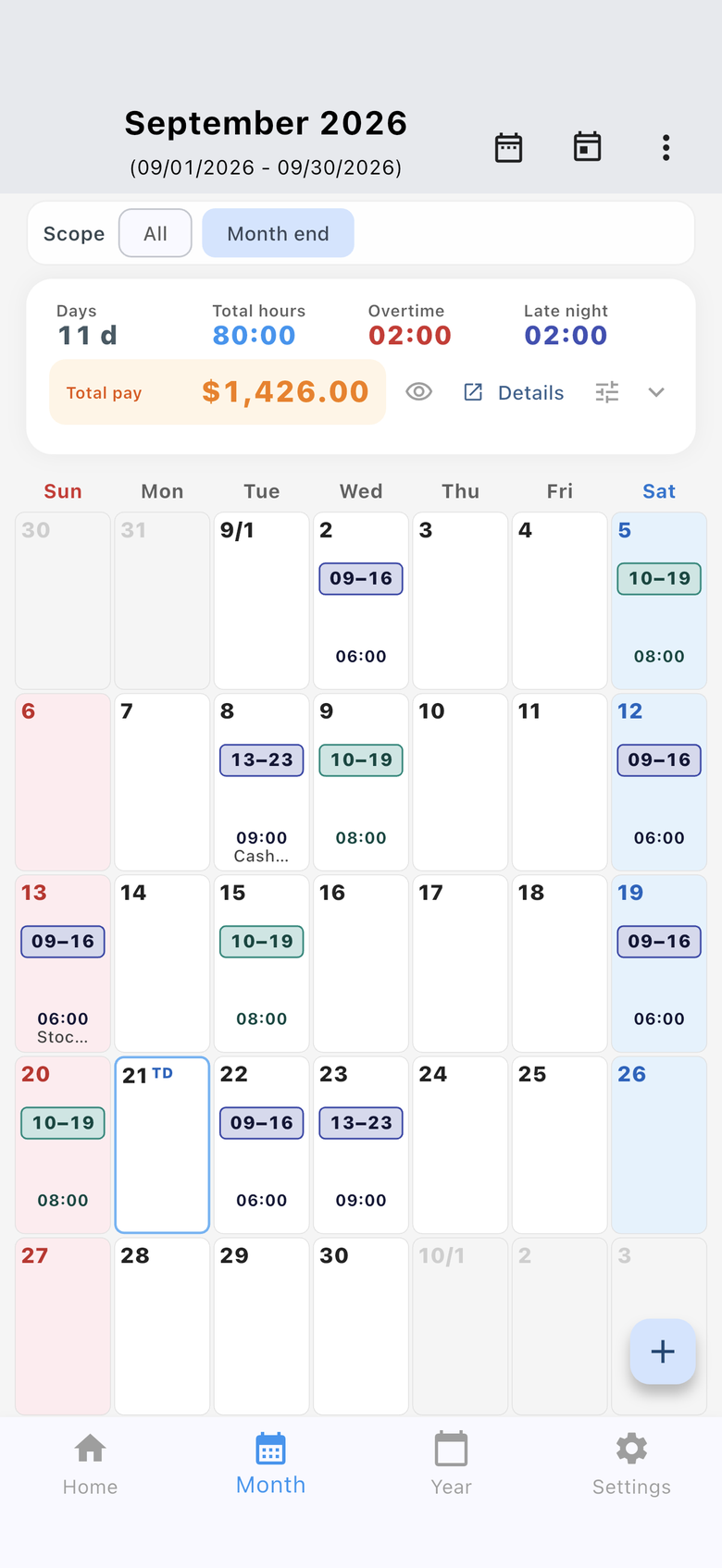
The Monthly tab shows the selected month as a list or a calendar (Ver. 3.2.0 and later).
Switching views
- Go to Settings → App settings → Monthly view to choose list or calendar.
- You can also switch from the overflow menu (︙) on the Month screen.
Common actions
- Change year/month and summary scope (e.g. all workplaces, closing day) at the top, depending on workplace settings.
- The summary shows days, hours worked, overtime, late night, total pay (estimate), and more.
- Tap a date to open daily detail for that day.
- Tap Details for a breakdown (totals and per-workplace).
- You may move to the previous or next month with arrows or swipe.
- Use + to add a record manually.
- In calendar view, each day shows a start-to-end time range. Switch to hours worked from the overflow menu, or under App settings → Calendar time display.
- Japanese public holiday names appear only when the app language is Japanese.
- Use planned shifts (App settings) is off by default. When it is on, a future day with no actual start time is saved as a plan. Clocking in turns it into actual times. Total pay counts actual times only.
- Planned-only days use a dashed chip on the calendar and a P badge in the list. Bulk add can replace them with the workplace schedule after you confirm.
- Bulk workplace registration is also available.
Yearly — annual trends
The Yearly tab shows estimated income and goal progress for the year.
- Yearly summary — Year-to-date total, annual goal, and progress.
- Monthly income chart — Estimated income per month and cumulative trend.
- Goal simulation — Year-end projection at your current pace and pace needed to reach your goal.
Daily — edit one day
Fix punches or enter a full day manually. Open from a date on the monthly list or from Edit today on Home.
- Select Workplace and Work pattern.
- Tap Start / End times to change them. Use the Next day toggle for shifts that end after midnight.
- Set Regular break and Late-night break.
- Leave flag — Tap ? next to the label for an explanation.
- Notes (single line) and tags such as early leave may be available.
- Tap Save at the top to apply. If you change the date with unsaved edits, you will be asked to confirm.
- Swipe left/right or use side arrows to move to the previous or next day.
Workplaces
Go to Settings → Workplaces to list, add, and edit workplaces.
- Tap + to add a workplace.
- For each workplace, set hourly wage, rounding (e.g. per minute), closing day, goal amount, default start/end times, break times, and more.
- Register separate workplaces if you work multiple jobs or sites.
Work patterns
Under Settings → Work patterns, register rules for shifts or pay rates and select them on the daily screen. Details depend on how you configure each pattern and workplace.
Settings
Main items on the Settings tab:
- Workplaces
- List and edit workplaces (see above).
- Work patterns
- Register and edit patterns (see above).
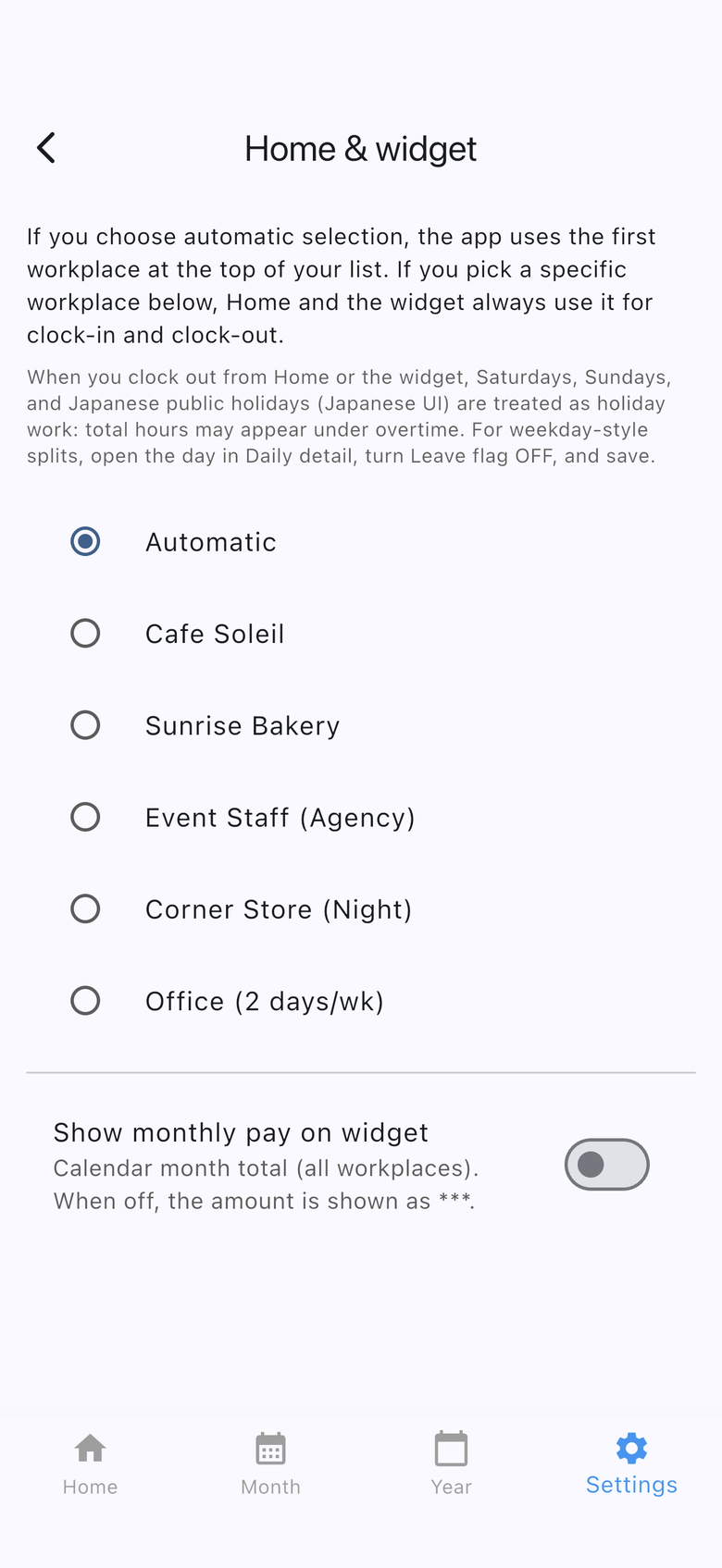
- Home screen widget
- Workplace used for widget punches, optional monthly pay on widget (below).
- App settings
- Appearance, language, monthly view (list / calendar), calendar time display, and planned shifts.
- Mail delivery settings
- Export monthly data and share via the system share sheet (below).
- Otsukare card (share card)
- Optional shareable image of your work summary after clock-out (on/off and theme).
- Backup & restore
- Optional cloud backup (below).
- Ad-free
- When the benefit is not active, watch a short video to hide ads for a limited time (also from Home or the Month overflow menu).
Home screen widget
On iPhone and Android you can add a home screen widget to punch in/out without opening the full app (steps and appearance vary by OS and device).
- Add the Time Card widget from your device’s home screen settings.
- In the app: Settings → Home screen widget — choose automatic or fixed workplace for punches, and whether to show estimated monthly pay on the widget.
- Use the widget buttons to clock in or out.
Widget layout and size follow your OS. If the widget does not work as expected, use the Home tab inside the app.
Backup & restore
Settings → Backup & restore lets you back up data when you choose. Nothing is sent to the cloud automatically.
- Android — Back up and restore via Google Drive (Google sign-in may be required).
- iPhone — Back up and restore via iCloud (iPhone to iPhone). To move from Android to iPhone, check the in-app instructions for Google Drive.
- We recommend backing up before changing devices or reinstalling the app.
Export & share (CSV)
From Settings → Mail delivery settings (and related screens), you can export monthly data and share it via Mail, Files, or other apps. Follow the on-screen instructions for format and destination.
Sharing uses your device’s apps only. The developer does not receive your exported files or email content.
FAQ
- Is the pay shown my final salary?
- No. It is an estimate from your hourly settings. Actual pay and invoicing follow your employer or contract.
- I punched the wrong time
- Use Correct clock-in time on Home, or open Daily detail for that day, fix start/end times, and tap Save.
- What happens if I delete the app?
- Data on the device may be lost. Back up first using Backup & restore.
- How do I switch to Japanese?
- Open Settings → App settings and change the app or device language if available.
- Can I hide ads temporarily?
- Yes. Watch a short rewarded video to hide in-app ads for 48 hours. Start from Home (“Ad-free”), the Month overflow menu (︙), or Settings.
Important notes
- Features and layouts may change in app updates.
- This guide reflects the app as of 2026 and may not match the latest UI.
- Support: stallions.0721@gmail.com
- Privacy policy